
Security Tab
Member Security
Tab: Security.
Use the Security tab to check and manage host-level firewall and SSH access for one server in a hosting pool. It is for server access control, not website, database, or cPanel account security.
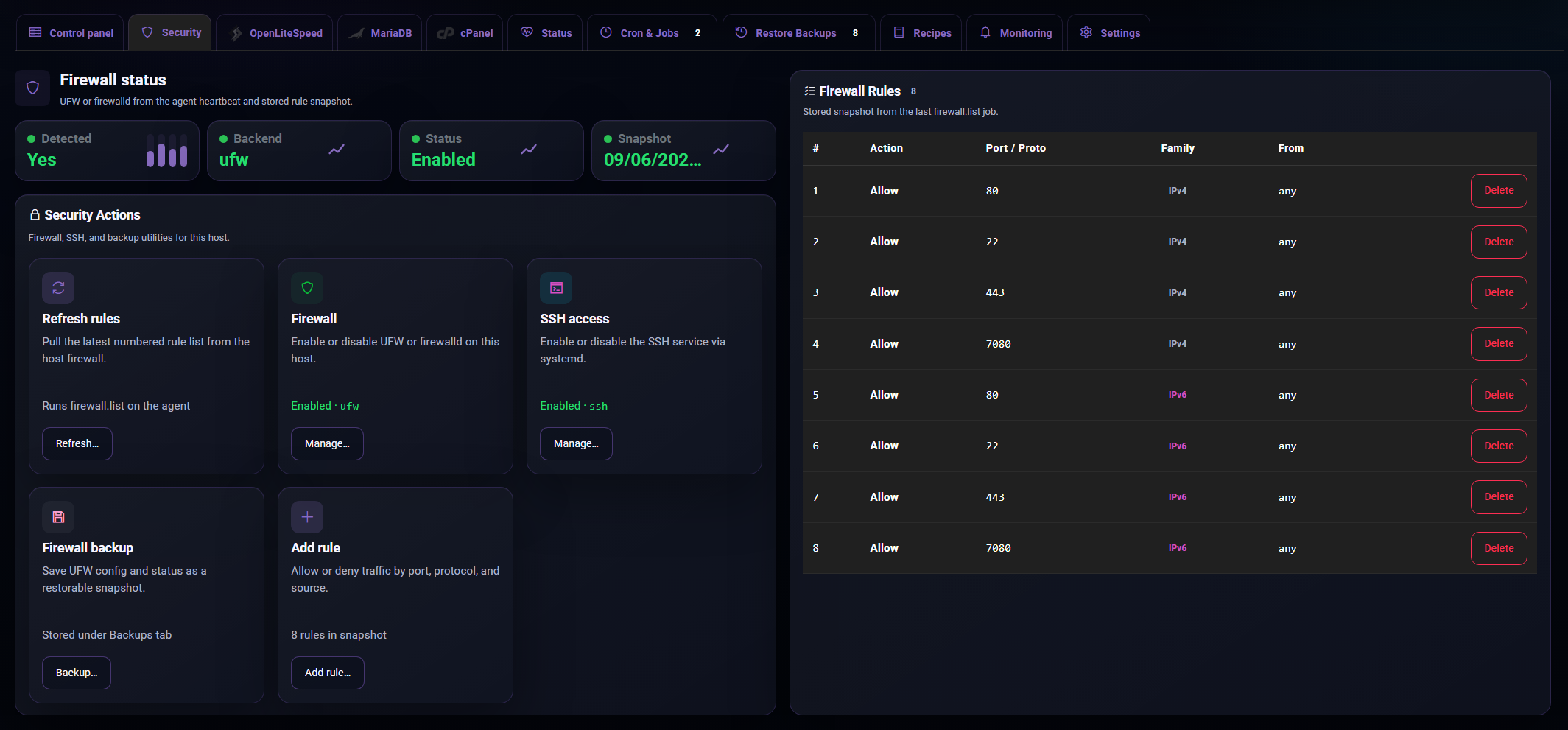
What you can do
Supported firewall views are based on what the member reports, commonly UFW or firewalld.
Free and Pro
Community gives visibility. Pro gives controlled action: rule changes, firewall state changes, SSH access control, and firewall backups before risky changes.
Firewall status
Open Pool, choose the member, then select Security.
The firewall status area shows:
If the firewall is not detected, the member may not have a supported firewall installed or the agent may not have enough information yet. Refresh rules after fixing the host.
Refreshing rules
Use Refresh rules to pull a fresh firewall rule list from the host.
Refresh is useful after:
The rules table updates after the job completes. Check Cron & Jobs if the refresh does not appear to finish.
Managing the firewall
Use Firewall to enable or disable the detected firewall backend.
Before enabling the firewall:
Before disabling the firewall:
Existing rules are preserved. Refresh rules after the job completes so the table reflects the new state.
Adding rules
Use Add rule to allow, deny, or reject traffic by protocol, port, and source.
The form asks for:
Use narrow sources where possible. For example, allow SSH from your office or VPN range instead of allowing it from anywhere.
Deleting rules
Use Delete from the firewall rules table when a rule is no longer needed.
Deleting a rule can immediately change live traffic. Check the action, port, protocol, source, and comment before confirming.
SSH access
Use SSH access to enable or disable the SSH service on the host.
Disabling SSH may close current sessions and block new SSH logins. The balctl agent should continue running, so you can turn SSH back on from the Security tab when the member is still checking in.
Use this carefully. If the agent stops checking in and SSH is disabled, you may need console access from your server provider.
Firewall backup
Use Firewall backup before large firewall changes, migrations, or security cleanups.
Firewall backups are stored with the member's backups so they can be found from the backup and restore areas. Keep a backup before removing broad rules or changing access to production services.
What this tab does not manage
The Security tab is host-level only.