Part 1 - Overview & Concepts

What ServersCTL hosting pools are

ServersCTL (serversctl.com) is the control plane for redundant server infrastructure: enrol Linux VMs with the ServersCTL agent, monitor heartbeats, cut over DNS between peers, run stack backups, and (on the cPanel preset) orchestrate account replication and live WHM transfers.

server pool is one deployment in your dashboard — a set of members sharing failover DNS and pool-level settings. Members run what you actually install on each host. The dashboard exposes member tabs for OpenLiteSpeedMariaDB/MySQLGalera, and cPanel/WHM; each tab fills in when the agent detects that stack on that server.

ServersCTL does not host traffic. It moves DNS, queues remote jobs, and calls APIs where configured.
PoolOverviewLinuxGeneric.png

Pool Presets

Server pools are created using a preset template in the UI. This chapter is for the Generic Linux Server Preset. For HAProxy Server Pools, see the HAProxy chapter.


What runs on a member (stack compatibility)

Do not assume one VM runs every stack. Common deployments:

Deployment Typical member stacks Notes
cPanel / WHM hosting
cPanel tab + MariaDB tab (cPanel-managed MySQL)
Apache/httpd via cPanel — not OpenLiteSpeed
OpenLiteSpeed web farm
OpenLiteSpeed tab only
Standalone OLS
MariaDB / Galera nodes
MariaDB tab + Galera readout
DNS swing ≠ Galera quorum
Mixed pool
Different tabs per member
e.g. two cPanel standbys + one OLS edge — each member’s tabs reflect its OS

Core terminology

Term Meaning
Pool
One ServersCTL Pool.
Member
One enrolled server (hostname, egress IP, enrollment secret)
Active member
Host whose IPv4 receives the pool failover A record.
Stack tab
Member workspace: OpenLiteSpeed, MariaDB, cPanel, etc.
Protected account
cPanel account with a replication job.
Agent
balctl_heartbeat.py on each member — heartbeats to serversctl.com

Architecture

Clients → DNS (Cloudflare / WHM) → A record → Active member IPv4
ServersCTL Worker (serversctl.com)
Standby members' ← agent heartbeats (+ WHM replication on cPanel preset)

Failover health: missed heartbeat beyond failover delay (10–120 s). No HAProxy systemd check on hosting presets.

All Linux Servers should use the Generic Server Preset when adding a pool. Only ever select the HAProxy Preset if HAProxy is installed on your server.

Create a Generic Linux pool
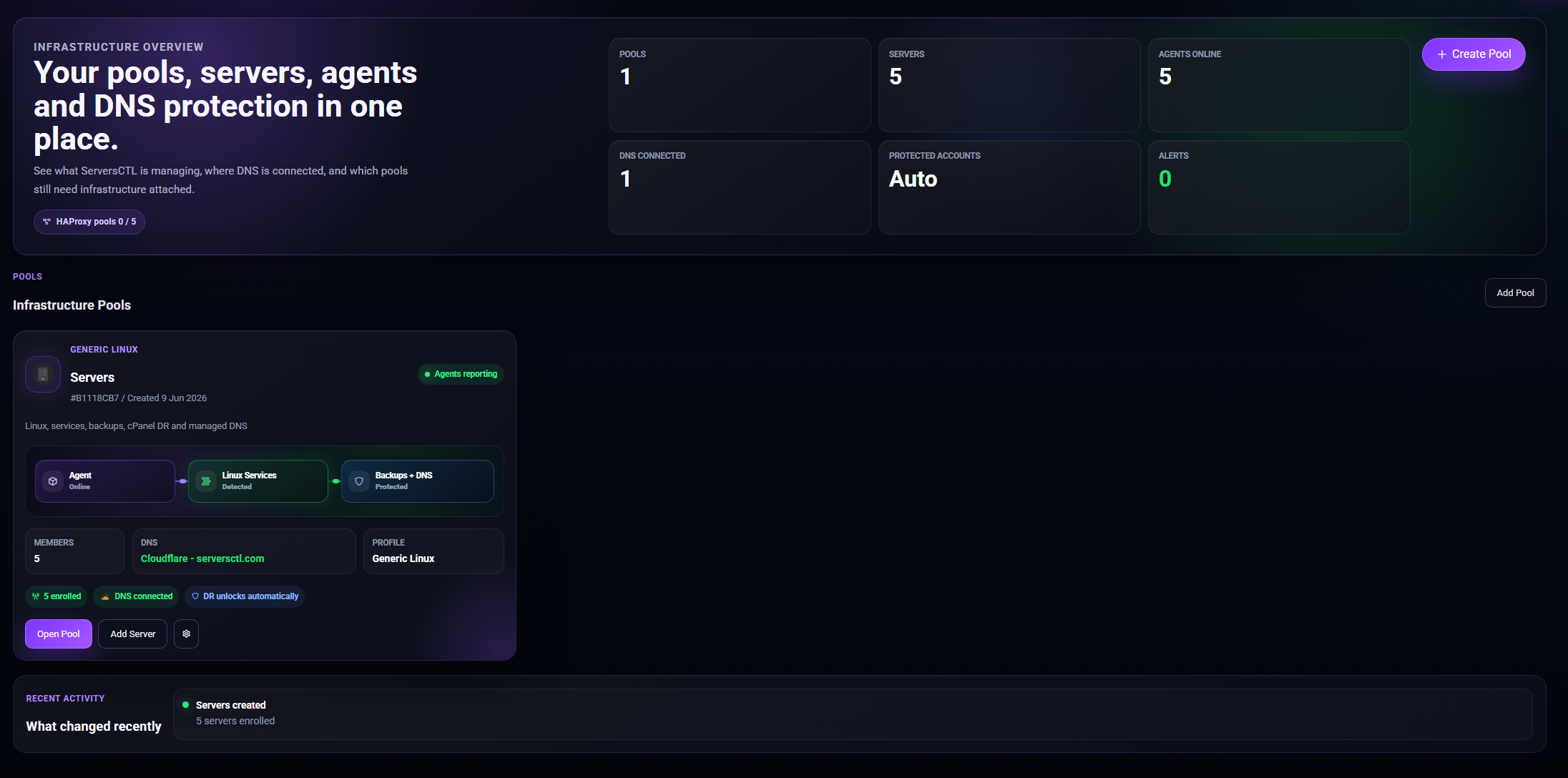
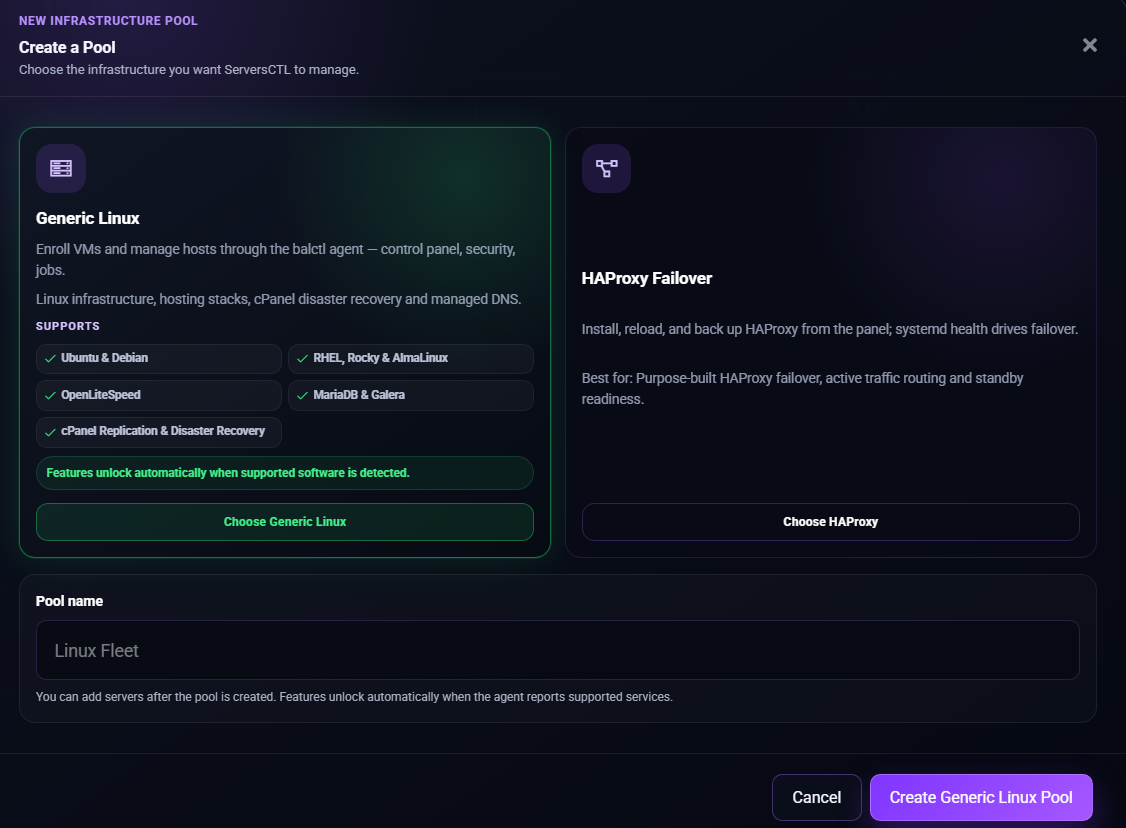
      Sign in at serversctl.com  Pools  Create Pool.

      CreatePool.png

          Configuration preset: Generic Linux servers.

          CreatePool-1.png

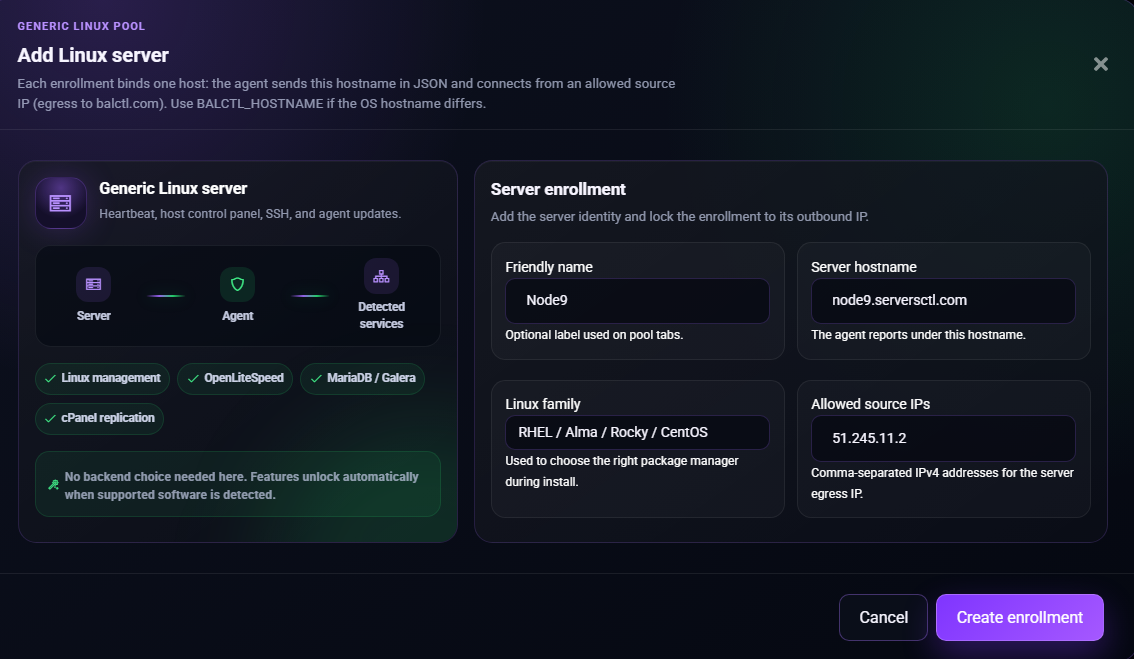
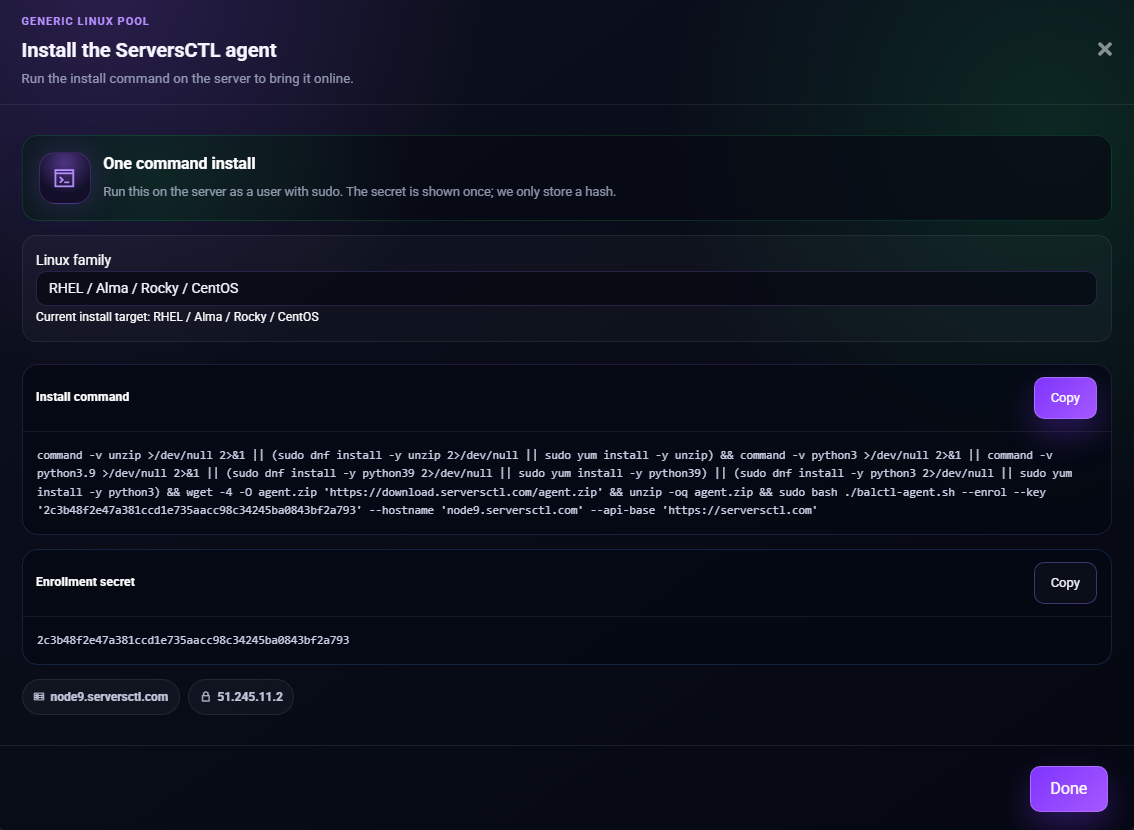
              Name the Pool. Now, go to the pool. Pool  Overview  Add server. Choose — RHEL/Ubuntu - Enter hostname, allowed egress IP.
                CreateEnrollment.png Click Create Enrollment" and copy the install command.
                CreateEnrollmentKey.png

                  On the VM: 
                    Paste the install command into the console to install the agent.  If you have existing installs of cPanel, OpenLiteSpeed, MariaDB etc. The agent will report this to the UI.  When 2+ members run cPanel: pool Protection and Managed DNS tabs appear (see Chapter 1). Optional: Configure DNS on Managed DNS for account-level cutover.

                    Add further members to the Pool

                      From the pool overview tab click "Add Member". Name the member and supply the member's egress IP. Copy the install command into the console of the server being added to the pool. Repeat the process to add further members. There are no limits to the number of pools or members you may have.

                      How pool navigation works

                      Two layers on one screen


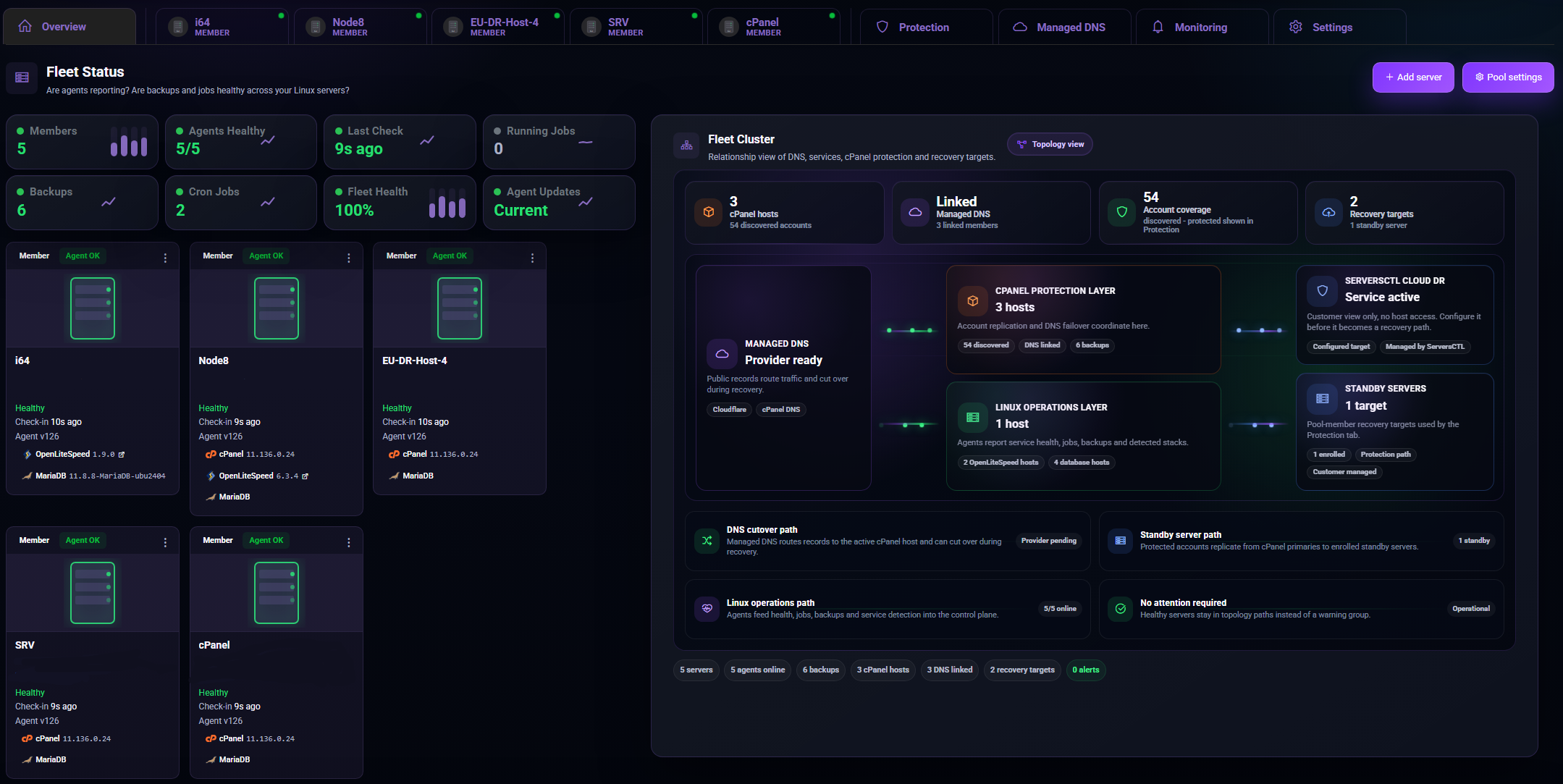
                      The UI is split into two sections. The top tabs manage overall pool settings and the lower tabs manage member settings.

                      Layer What it controls Examples
                      Pool tabs
                      Settings and services that span all members or protected accounts across members
                      Overview fleet, Protection replication, Managed DNS catalogue, pool Monitoring presets, pool Settings
                      Member tabs
                      One enrolled Linux server — host OS, detected stacks, jobs, and backups
                      Control panel, Security, cPanel, MariaDB, Cron & Jobs

                      Linux-Server-Pool-O2.png

                      Protection and Managed DNS are pool settings. They float in the top tab bar above the member server tabs. They coordinate account replicationDNS cutover, and provider keys across the fleet — not operations on a single box.

                      Pool tab visibility (Generic Linux template)

                      Pool tab Always? When it appears
                      Overview
                      Yes
                      Default landing
                      Member tabs (one per server)
                      When enrolled
                      Subtitle Member on Generic pools (not Active/Standby)
                      Protection
                      No
                      2+ members with cPanel detected
                      Managed DNS
                      No
                      Same as Protection on Generic pools (2+ cPanel members)
                      Monitoring
                      Yes
                      Pool-wide alert presets
                      Settings
                      Yes
                      Pool name, API providers, delete pool

                      Tab: Overview (first pool tab).

                      Purpose: Fleet-wide health — are agents reporting, are backups and jobs healthy across Linux servers?

                      What you see

                      Section Content
                      Fleet Status header
                      KPI widgets: member count, healthy agents, last check-in, backup count, cron jobs, running jobs, outdated agents
                      Fleet geography map
                      Members plotted when geo is set on each member’s Settings tab
                      Server tiles
                      One tile per enrolled member — click to open that member’s workspace
                      Actions
                      Add serverPool settings

                      Operator actions

                        Add server — enroll another VM (see §18) Click a server tile or member tab — jump to that member’s Control panel Pool settings — shortcut to pool Settings tab

                        Tab: Protection (pool tab bar).

                        When visible: 2+ pool members where the agent reports cPanel.

                        Purpose: Account-level warm standby — scheduled WHM backup → Secure Storage → restore on a standby server, with optional DNS cutover per protected account.

                        What you see

                        Section Content
                        Protection dashboard
                        KPIs: protected accounts, replication health, last sync
                        Server cards
                        Each cPanel-eligible member — readiness, WHM link, geography
                        Protected accounts
                        Per-account source → standby mapping, schedule, TTL, DNS provider
                        Replication log
                        Sync, DNS cut, transfer, and failure events
                        Geo map
                        Primary / standby geography when locations are set

                        Operator workflow

                          Ensure 2+ cPanel members and WHM API keys (Settings or Managed DNS → API providers). Add protection — pick source account, target standby member, schedule (1h … 1mo), DNS TTL, DNS provider (Cloudflare or WHM). Replicate now / Replicate protected (Pro) — on-demand sync. Account Cut DNS — per-account A record swing to standby (coordinates with Managed DNS). After DNS cut: post-failover hook on standby.

                          Relationship to member tabs

                          Task Where
                          Bulk account replication, schedules, protection DNS
                          Pool Protection
                          Single-account migrate, live transfer sessions
                          Member cPanel → Migrate & Recovery
                          WHM account CRUD, suspend, AutoSSL
                          Member cPanel → Accounts

                          Protection is pool-wide orchestration; member cPanel is per-server WHM operations.

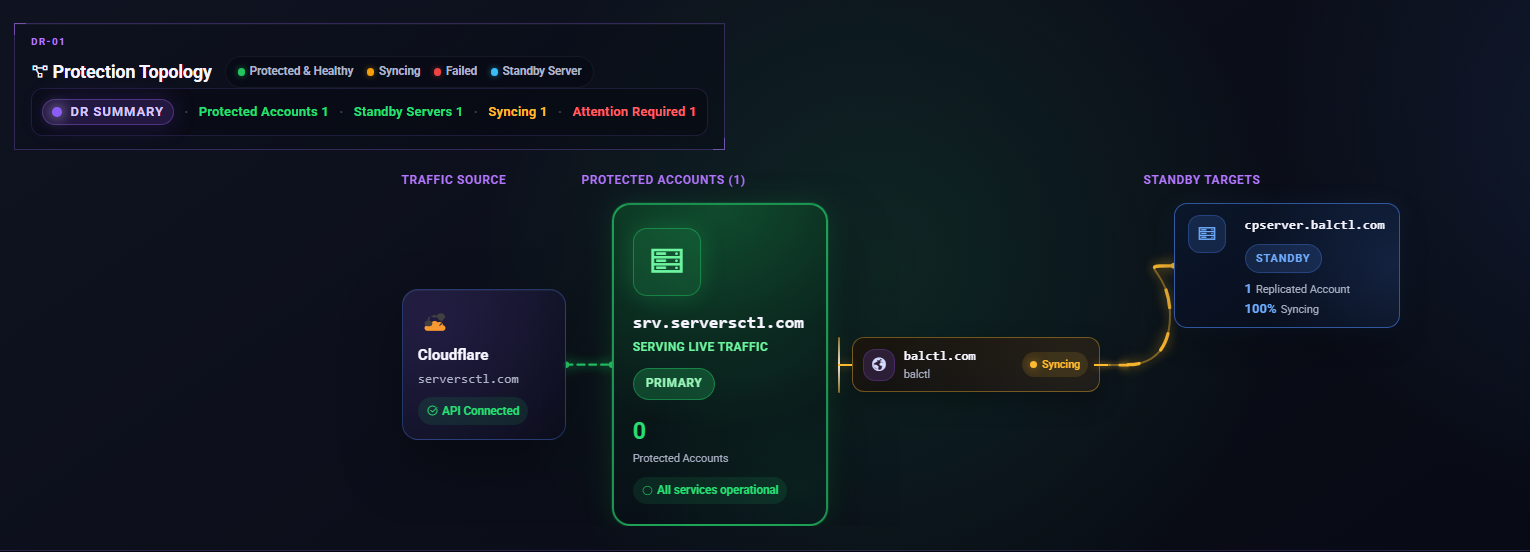
                          Replication Transfer

                          Replication can take anywhere from a few minutes to several hours, depending on the size of the account.
                          ReplicationTopologySync.png

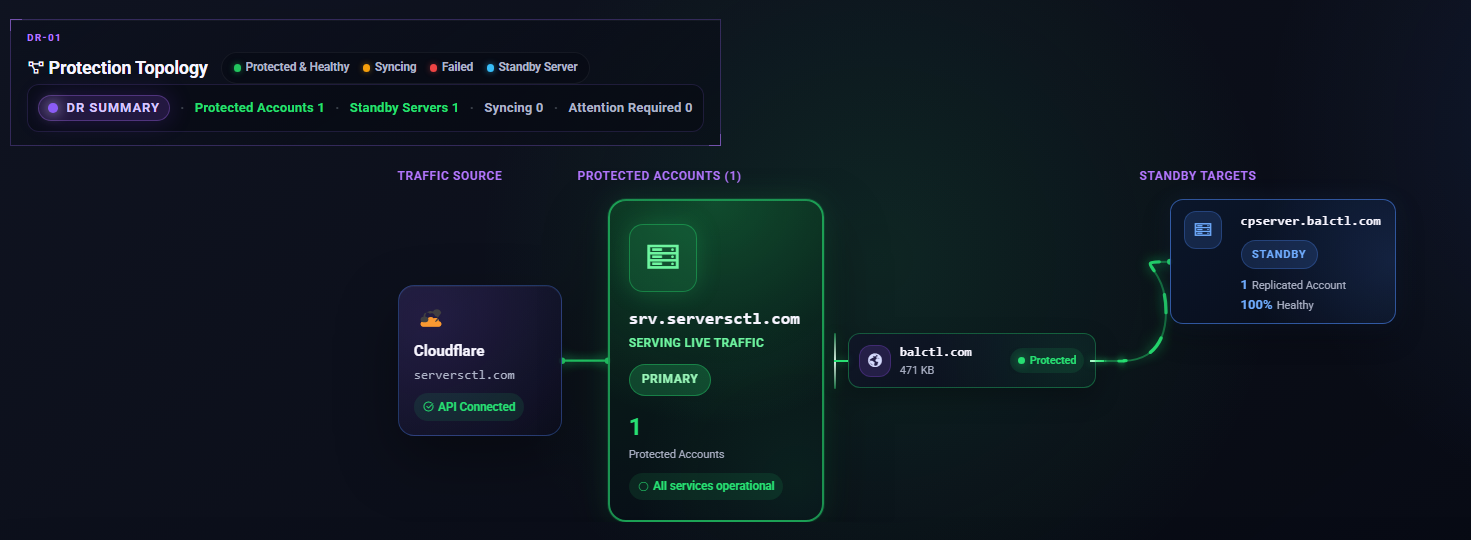
                          The source agent will package the account and split it into multiple chunks, which are securely stored temporarily in D2 storage. Once all chunks have been uploaded, the UI instructs the receiving agent to download them and begin the restore process.

                          After the restore has completed successfully, all stored chunks are automatically removed from S3. As a guide, a 1.8GB backup typically takes around 5 minutes to replicate. Please take replication time into account when configuring your schedule. If the account is large, you may need to replicate once per day or every few days to avoid overlap and ensure the process completes cleanly.
                          ReplicationTopology.png

                          Tab: Managed DNS (pool tab bar).

                          When visible (Generic Linux): 2+ cPanel-detected members

                          Purpose: Pool-level DNS catalogue for protected accounts and optional dynamic DNS — WHM vs Cloudflare zones, record health, sync, import. The API keys listed here are for DNS only. Do not use your production WHM API key here. You must use Cloudflare or a cPanel DNS Cluster API Key.

                          What you see

                          Section Content
                          DNS Health
                          Zone summary, provider linkage, drift, topology banner (DNS Provider → Primary → Standby) when Protection is active
                          Protected account records
                          Per-FQDN proxied/DNS-only, enabled, active IP, cut actions
                          API providers
                          Cloudflare account keys (one Global), per-member WHM keys
                          Dynamic DNS card
                          Failover hostname and sync toggle (Generic pools — primary place for DNS failover config)
                          Actions
                          Refresh DNS, Sync WHM→CF, Add record, Import from Cloudflare

                          Operator actions

                            Connect Cloudflare and/or cPanel DNS API credentials Import existing Cloudflare records into the catalogue Sync WHM→CF after account changes on WHM Account Cut DNS from record rows (also available on Protection cards) Set failover hostname and enable DNS sync (when using pool-level cutover)

                            Protected DNS

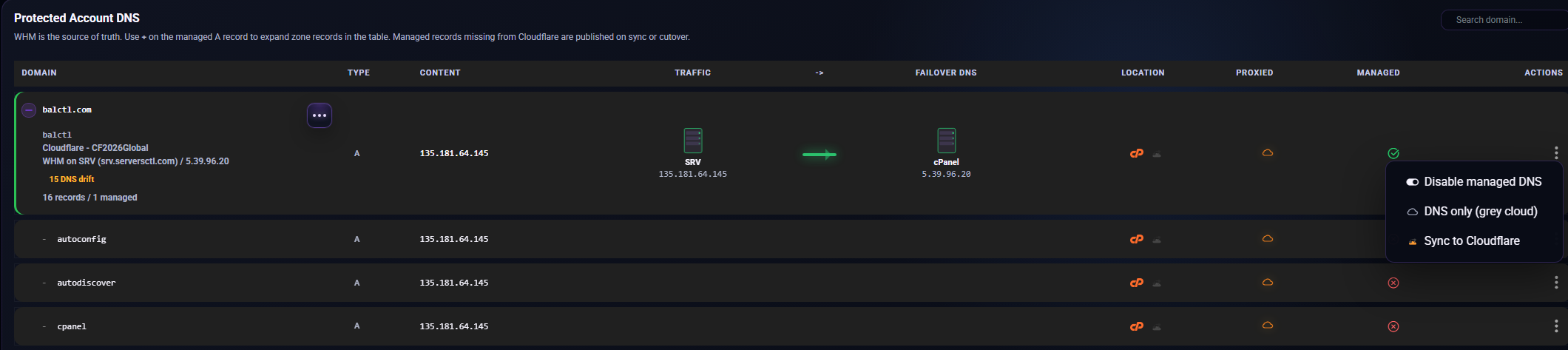
                            The UI treats WHM servers as the source of truth and replicates changes to any linked DNS provider, as long as the account is marked as Managed. By default, the only record that will cut over automatically is the domain’s A record.

                            Multiple DNS Record Cut Over

                            You can configure the UI to cut over additional DNS records from the Protected Account DNS list. From here, you can specify A, AAAA, MX, and SRV records that should automatically cut to a standby server when the primary becomes unavailable.

                            Actions

                            The three‑dot menu under the Action column provides additional fine‑tuning options:

                              Disable Managed DNS – When disabled, DNS records will not be updated or cut over during failover.

                              DNS Only – During cutover, Cloudflare proxying will be disabled (grey cloud), ensuring a direct DNS‑level switch without CDN caching or WAF interference.

                              Sync to Cloudflare – If you’ve added new DNS records in WHM’s DNS Manager, they will appear in the Protected DNS table and can be automatically pushed to Cloudflare.
                              ManagedDNSActions.png

                              Pool vs member DNS

                              Scope Tab
                              Protected accounts, zone catalogue, provider keys, and failover FQDN
                              Pool Managed DNS
                              Per-member WHM key rotation
                              Pool Settings or Managed DNS API panel
                              Host TLS / Let’s Encrypt on a single VM
                              Member Control Panel or Recipes

                              Tab: Monitoring (pool tab bar).

                              Purpose: Pool-wide monitoring presets — distinct from per-member alerts on each server’s Monitoring tab.

                              Generic pool without Protection (0–1 cPanel members)

                              Infrastructure alerts section:

                                Heartbeat miss thresholds, CPU/disk/service alert toggles Optional alert email recipients (account + team inboxes)

                                Generic pool with Protection (2+ cPanel members)

                                Protection DNS failover section (in addition to or instead of infrastructure, depending on layout):

                                Preset Meaning
                                Failover banner
                                How long pool header shows Failover active after DNS cut (Community: 2 h max)
                                Failover email
                                Notify when DNS moves to standby
                                Failover alert recipients
                                Team inboxes for protection cutover

                                Operator note

                                Configure per-member heartbeat and resource alerts on each server’s member Monitoring tab. Pool Monitoring is for fleet-level and protection DNS behavior.

                                Tab: Settings (pool tab bar).

                                Purpose: Pool identity, shared API credentials, danger zone.

                                What you see (Generic Linux)

                                Card Content
                                Pool name
                                Rename the pool
                                API providers
                                Cloudflare account keys (mark one Global). Each cPanel server needs its own WHM key (pool-level + per-member rows)
                                Danger zone
                                Delete pool
                                What is NOT on the Generic pool Settings
                                Feature Where instead
                                Balancer failover (auto-failover delay, make-active hostname)
                                Managed DNS (when tab visible) or optional — Generic pools work without DNS
                                Protection jobs
                                Protection tab
                                DNS record catalog
                                Managed DNS tab

                                HAProxy pools include Balancer failover on Settings.