MariaDB/MySQL Tab
Standalone database server
Overview
Use the MariaDB / MySQL tab to check database service health, refresh the live database inventory, create database backups, and restore database versions when needed.
This tab appears for Generic Linux members. It is useful for dedicated database servers, OpenLiteSpeed servers with local databases, and cPanel servers where MySQL is managed by WHM.
What is included
| Subtab | What you use it for |
|---|---|
| Overview | Check database service health, listener status, version, replication role, recent backup age, logs, and service actions. |
| Databases | View live schemas, refresh discovery, see backup versions, back up selected schemas, restore versions, and delete old database backups. |
Free and Pro
| Feature | Community | Pro |
|---|---|---|
| View service health and heartbeat-reported database status | Included | Included |
| View version, listener, uptime, and basic metrics when available | Included | Included |
| View live database inventory | Included | Included |
| Refresh live database discovery | Included | Included |
| View existing backup versions | Included when available | Included |
| Back up all databases | Upgrade required | Included |
| Back up selected schemas | Upgrade required | Included |
| Restore database backup versions | Upgrade required | Included |
| Delete managed database backup versions | Upgrade required | Included |
| Choose a Storage Pool for database backups | Upgrade required | Included |
Pro is for real database operations: scheduled recovery coverage, one-click backups before risky changes, schema-level restore, and storage-aware backup management.
Overview subtab
Open Pool, choose the member, select MariaDB / MySQL, then open Overview.
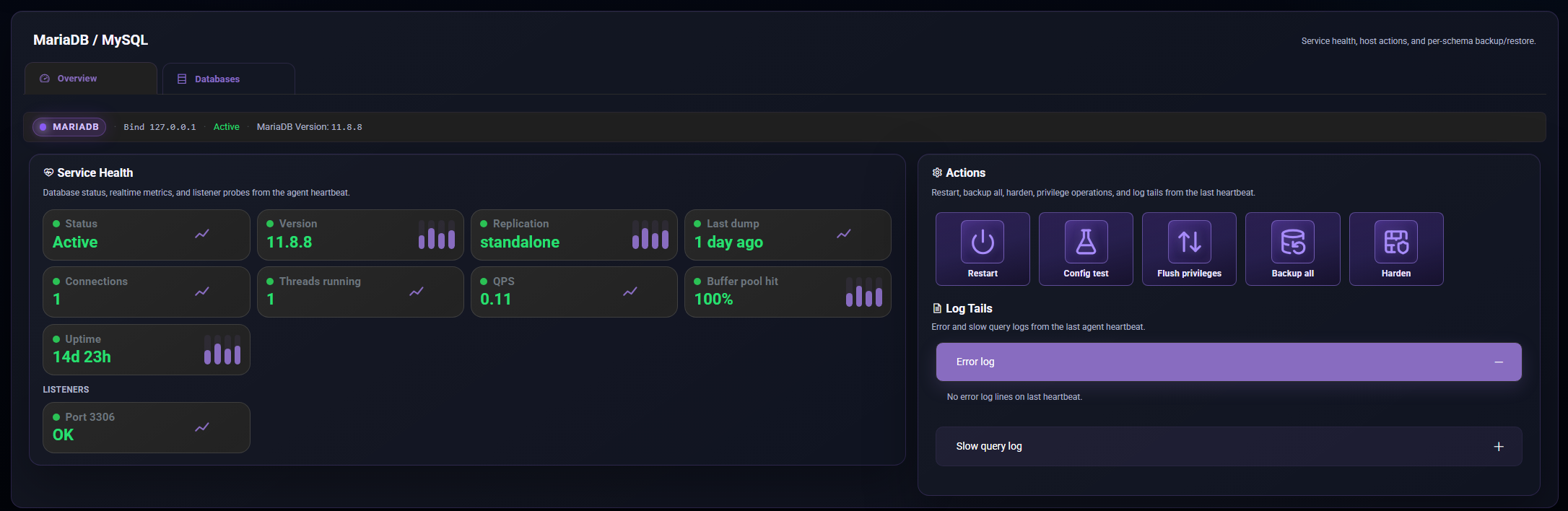
The Overview subtab shows:
- Database service status.
- Server version.
- Replication or Galera role when reported.
- Last all-databases backup age.
- Listener status, usually port 3306.
- Connections, running threads, queries per second, uptime, and buffer pool signals when available.
- Error and slow-query log tails from the latest member report.
Available actions include:
| Action | Use it when |
|---|---|
| Restart | The database service needs a controlled restart. |
| Config test | You want to check database configuration before restarting. |
| Flush privileges | Database grants or users were changed and privileges need reloading. |
| Backup all | You want one recovery point containing all databases on the member. |
| Harden | You want the platform to apply supported database hardening guidance or actions. |
On cPanel servers, the tab may show a cPanel host notice. Use the cPanel tab for WHM account work, but use Databases here to refresh and back up discovered application schemas.
Databases subtab
Open Databases to work with the live schema inventory.
The Databases subtab shows:
- Live schemas currently found on the server.
- Size and table count when available.
- Database engine details where reported.
- Backup version count for schemas with stored recovery points.
- The latest backup age for each backed-up schema.
- A discovery cache age so you know how fresh the list is.
Use Refresh live when you have added databases, restored accounts, moved sites, or changed application database settings. On cPanel and web hosts, discovery can also find application-linked schemas from known config files.
Backing up databases
To back up all databases:
- Open Overview.
- Choose Backup all.
- Pick the Storage Pool if more than one is available.
- Review the estimate and start the backup.
To back up selected schemas:
- Open Databases.
- Open the menu on the schema card.
- Choose Backup.
- Confirm the schemas and Storage Pool.
- Start the backup.
The backup modal warns when the selected Storage Pool does not have enough remaining space.
Restoring versions
To restore a database version on Pro:
- Open Databases.
- Open the menu on a schema with backup versions.
- Choose Versions.
- Select the version you want.
- Choose Restore and confirm.
Restoring a database can overwrite live data. Check the version date, source member, and schema name before confirming.
Deleting versions
Use Delete from the versions modal when you no longer need a stored database backup. Deletion is permanent, so keep at least one known-good recovery point for important schemas.
cPanel-managed MySQL
On cPanel servers, MySQL is shared across accounts. That means:
- WHM account tasks stay in the cPanel tab.
- Database inventory and schema backups stay in MariaDB / MySQL.
- Use Refresh live after adding or restoring cPanel accounts.
- Application-linked schemas may appear after discovery even when root-level metrics are limited.
Galera (wsrep) (In Alpha)
When Galera is enabled, the agent will report the wsrep state. ServersCTL does not run quorum, SST, or writer election. DNS is active ≠ Galera primary.